Auto-Assign
It can be quite a bit of work to manually assign converters for a large database. Anonymize can help with its Auto-Assign feature. You've already used it if you followed the steps in Getting Started. This page explains how it works.
Normalization
The Auto-Assign process begins during scanning, where column names are normalized to a canonical form.
You have control over this process, as described on this page and on the Maintenance Forms page.
The table tblNormalizedColumns stores the intermediate and final values, and details are
written to AutoAssign.log. Neither is a place to make changes; they are where you look when
a
column name does not reduce the way you expected.
Normalization steps:
- Split column names on PascalCase/camelCase boundaries.
- Remove all non-alpha characters.
- Remove filler tokens. Use the Filler Words form to provide the tokens to remove.
- Normalize synonyms. Use the Synonyms form to provide synonyms.
- Expand abbreviations. Use the Abbrev Expansion form for this.
- Reduce to Canonical. This generates the final normalized column name.
The last step deserves a note, because it is where a column name meets your configuration. A name is collapsed to a registered canonical only when that canonical is the trailing part of the name — the English head rule. "Business Phone" ends with a registered canonical and becomes phone number; "Phone Carrier Name" does not, and is left alone. The registered canonicals are the names you enter in the Column Names and Lookup Tables forms, so those forms do double duty: they supply the vocabulary for this step as well as their own matching. The longest canonical wins, so "email address" is preferred over "address".
The rule cuts both ways, and it is worth knowing which way before you go looking for a bug. It protects you from "Phone Carrier Name", which is not a phone number and is rightly left alone. But by the same token it declines names whose qualifier trails the noun — "Phone Work", "Phone Home", "Address Billing" — because those end in "work", "home" and "billing", not in a registered canonical. There is nothing wrong with naming columns that way and plenty of schemas do; they simply will not reduce on their own.
The workaround is a Filler Words record for the trailing qualifier. Strip "work", and "Phone Work" becomes "Phone", which reduces to phone number like any other spelling. This is squarely what that form is for: a work phone and a home phone are anonymized identically, so the qualifier carries no treatment and has no business in the canonical name. Do weigh the token against the rest of your schema first, because filler removal is global — stripping "work" also rewrites "Work Order Number" to "order number", harmless here, but a token that changes how some other column should be treated does not belong in the list.
Having all column names in their normalized version improves the chances for matching up column names with others, including from other databases.
The core Auto-Assign process assigns converters, and is a multi-step pipeline, or workflow, as depicted in this graphic:
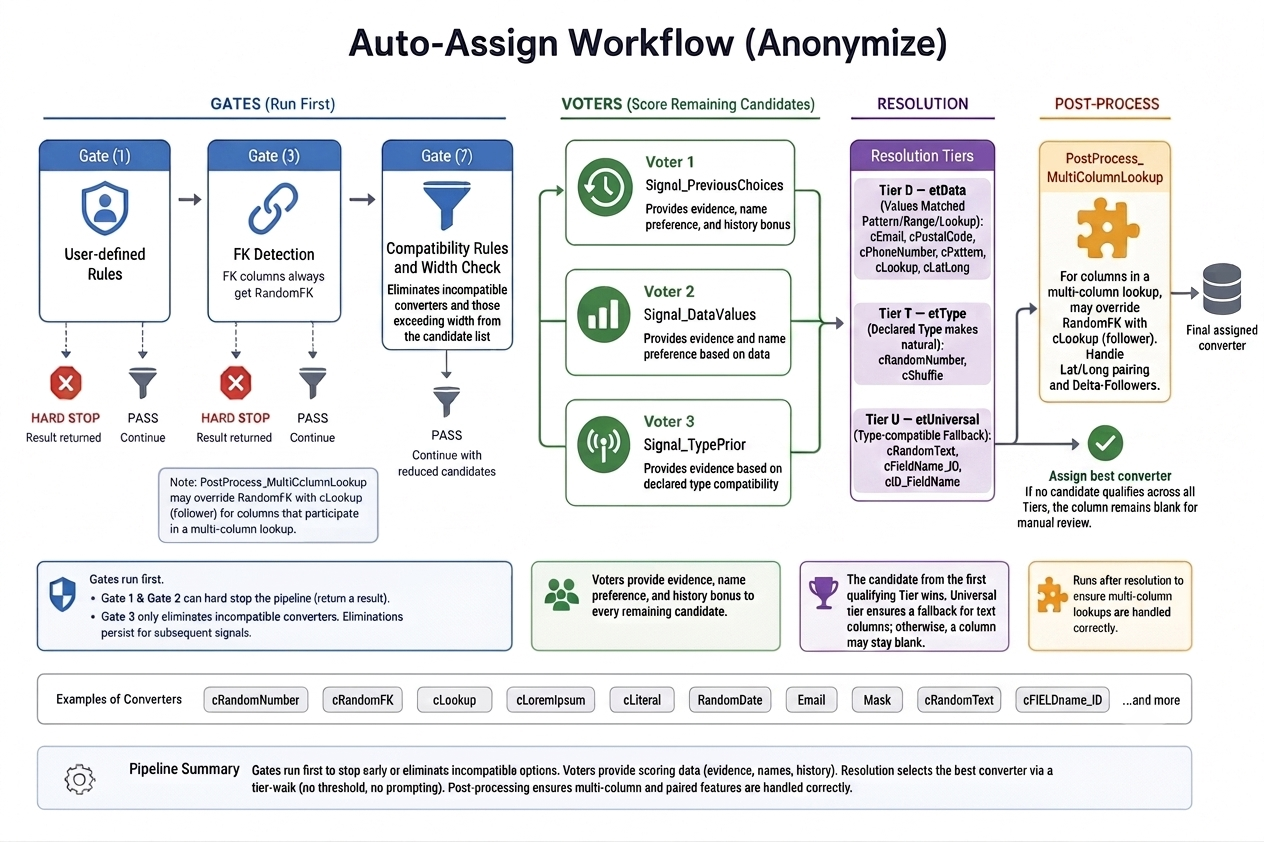 Figure 1 — The Auto-Assign process.
The core Auto-Assign process assigns converters using a multi-step pipeline:
Gates run first. A gate either stops the pipeline (hard stop) or eliminates candidate converters (for example, based on data type compatibility). Eliminations persist for later steps.
Voters run next. Each assigns a weighted score to the remaining candidates.
Resolution picks the winner by evidence tier rather than by a single top score; see Resolve below.
The final step handles multi-column lookups (for example, City and State with the Lookup converter).
Gate 1: User-defined rules
Before any automatic signal runs, Anonymize calls a VBA routine you can edit:
EvaluateUserDefinedRules, in module modInferenceRules_UserDefined. Whatever a rule decides
is a hard stop — the rest of the pipeline is skipped for that column. And because a rule is code, it
re-runs on every Auto-Assign, so unlike a choice made by hand on the grid it survives a re-scan of the
database.
A rule can do one of three things for a column:
- Assign a converter. The pipeline still fills in default arguments.
- Assign a converter and its arguments, as a JSON string. Build it with a dictionary, as the example shows, rather than hand-writing the JSON.
- Leave the column unassigned, by returning
cUserExcluded— the way to protect columns that no data signal can identify, such as form and report layout coordinates, from being anonymized. They appear on the Coverage Report as "Excluded by user-defined rule".
Write no rule for a column, and the automatic signals decide, as usual.
Example:
Public Sub EvaluateUserDefinedRules(ByVal rsWork As DAO.Recordset, _
                                    ByRef ecConverter As enumConverters, _
                                    ByRef strArgsJson As String)
    Dim dictArgs As Scripting.Dictionary

    'Assign a converter.
    If rsWork!ObjectName = "Orders" And rsWork!ColumnName = "CustomerID" Then
        ecConverter = cRandomFK
        Exit Sub
    End If

    'Assign a converter and its arguments.
    If rsWork!ObjectName = "Orders" And rsWork!ColumnName = "OrderDate" Then
        Set dictArgs = New Scripting.Dictionary
        dictArgs("Low Date (yyyy-mm-dd)") = "2026-05-13"
        dictArgs("High Date (yyyy-mm-dd)") = "2026-08-15"
        ecConverter = cRandomDate
        strArgsJson = ConvertToJson(dictArgs)
        Exit Sub
    End If

    'Leave metadata columns unassigned.
    If rsWork!ObjectName = "tblReportLayout" And rsWork!ColumnName Like "*Position" Then
        ecConverter = cUserExcluded
        Exit Sub
    End If
End Sub
Gate 2: Always Null Detection
If a column has no data, no converter is assigned. Converters do not work on Null data. If your database has an exception to that rule, write a user-defined rule which will be handled by Gate 1.
Gate 3: Foreign Key Detection
Foreign keys have very specific requirements with regards to their possible values. RandomNumber is not appropriate. The RandomFK converter is assigned to all FKs because it is uniquely positioned to provide values without creating referential integrity issues. No further rules are evaluated.
Gate 4: Hyperlink Detection
Hyperlinks in Access are a specific data type, and only hyperlink values would fit. In SQL Server it's a normal text field, and we can detect its shape using a Detection Pattern.
During the Apply process, we set hyperlink values to whatever the Converter arguments are set to; by default https://test.com/ and if the 'Append ID' box is checked, we add "?id=[pk-value]" to make the value unique.
Gate 5: Rich Text Detection
Rich Text is also a very specific data shape, and when we detect it we will use the Rich Text version of Lorem ipsum.
Gate 6: Coordinate Columns (Latitude / Longitude)
A latitude or longitude column is recognized here rather than left to the values alone, because coordinates have no reliable signature of their own: almost every small decimal number falls within the latitude range, so the range by itself says nothing. The claim instead rests on three signals together — a canonical name of latitude or longitude, a Decimal data type, and corroboration from the values, where at least 95% of a sample must fall inside the coordinate range (±90 for latitude, ±180 for longitude). The 95% bar tolerates the occasional typo or stray value rather than disqualifying a real coordinate column on a single bad row.
This gate runs before the Lookup Column Name gate below, so a standalone coordinate is claimed as Lat/Long rather than being matched, one column at a time, against a lookup's own latitude column. A latitude and longitude that travel together with a City are instead handled as part of that multi-column lookup. The pairing of a latitude lead with its adjacent longitude follower — so the two can never diverge — is done in Post-Processing, described below.
Gate 7: Lookup Column Name
If there is a Lookup table with a canonical column name same or similar (via the Simil and Jaccard algorithm) as the current column, that is a very strong signal, and if the value is above the threshold, processing stops and the Lookup converter is returned, with appropriate arguments.
The comparison is between whole canonical names. It does not need to try trailing suffixes, because the Reduce to Canonical step has already dealt with qualifiers: "Primary Residence Address" arrives here as address. Redefining modifiers survive that reduction, so "Email Address" stays email address and does not match the address lookup.
The converter will give the nod to country-matching lookups. If there are ties, the gate opens, and subsequent voters (e.g. Signal_DataValues) will break the tie.
Gate 8: Compatibility rules
This step eliminates converters that cannot be used for a column. It checks three things, all of them driven by the Converters form.
Unique index. If a column has a unique index, converters that do not guarantee unique output are eliminated. The Converters form has a "Produces Unique Values" checkbox to indicate which converters do.
Column width. A converter whose output can exceed the column's capacity is eliminated, so a narrow column is never handed a value that will not fit. Converters that size their output to the data — or to the column — are not affected, and a column of unlimited length (Long Text, or a SQL Server (max) type) rules nothing out.
Data type. The Converters form has a list of Compatible Field Types, and Anonymize checks that the data type of the current column is compatible with the selected field types.
This gate does not cause the pipeline to stop; it will continue with the more limited set of candidate converters.
Gate 9: Data type = Date
At this point in the pipeline only one converter is compatible with Date fields, and that is RandomDate.
Gate 10: Data type = GUID
At this point in the pipeline only one converter is compatible with GUID fields, and that is RandomGUID.
Gate 11: Data type = Binary
At this point in the pipeline only one converter is compatible with Binary fields, and that is RandomBinary.
This converter takes two arguments, the name of a Lookup table and Binary column. The maintenance form Binary Lookup Tables can be used to populate such tables.
tblAnonLookup_Binary is an example of a Lookup table with a Binary column.
Gate 12: Structural Content
If the sampled text values represent HTML/RichText, or XML, or JSON, then we recognize that and will emit LoremIpsum with corresponding format. The analyzers are the bracketed rows on the Detection Patterns form, and each has its own firing threshold.
A column of the SQL Server xml data type takes a shortcut: it declares its format in
metadata, so
it is recognized without sampling. Unfortunately this does not work for json data type (SQL Server
2025+), because it is not supported yet by ODBC/Access.
This gate runs before the LongText gate below, so that a memo column holding markup gets Lorem ipsum in the matching format rather than plain paragraphs.
Gate 13: Data type = LongText
At this point in the pipeline only one converter is compatible with LongText fields, and that is LoremIpsum.
Text columns that are effectively ShortText are skipped. They will later participate in the voters.
Gate 14: Input Mask
Access designers can apply an Input Mask to a field, which is a strong signal of the data shape. Anonymize will use that to assign a converter with the same shape.
Gate 15: Phone and Postal Code by name
This gate assigns Phone Number or Postal Code when the column's canonical name says so and the data agrees. It exists because these two formats are not reliably recognizable from their values alone.
A phone number that is stored with its decoration — (480) 970-3332 — is recognized by the Data Values voter below, but the same number stored bare, as 4809703332, looks like any other ten-digit number. So when the canonical name maps to Phone Number in the Column Names form, Anonymize checks the values against the published list of area codes for the country. Real phone numbers hit an assigned area code nearly every time, while arbitrary ten-digit codes hit one about a third of the time, which separates them cleanly.
Postal Code works the same way, confirming the values against the country's postal shape. In the United States that shape is five digits, which is why the name is required: nothing distinguishes a ZIP code from a job number by looking at the values. See Country Converters for more on this point.
Voter 1: Previous Choices
This step looks at how similar columns were assigned in previous databases.
For example, if tblOrders.OrderDate was previously assigned RandomDate, the same assignment is favored when processing that column again.
The comparison is not made on the raw column names but on the normalized names discussed above, and it is an exact match: only a previous column whose canonical name is identical counts. Near-matches are the business of Voter 5 below. Only assignments you validated — Confirmed, ConfirmAll or Manual — are considered, and only from other databases, so the signal is genuinely historical.
History is a tie-breaker by design. Its influence is capped, and deliberately kept smaller than the evidence from the data itself, so that a previous decision can settle a close call but never overrule what the current column's values are saying.
Voter 2: Data Values
This step looks at a sample of up to 1000 records of the actual data in the column and tests it against a list of detection patterns. (Long Text columns are sampled more modestly, since their values can be very large and the only question asked of them is what format they are in.) The sample is drawn once per column and shared with the gates above, so a column is never read twice. The list of patterns is in the Detection Patterns form and you are welcome to add more patterns to the list, specific to the data in your database.
The fraction of sampled values that match is the converter's evidence. A converter can also be vetoed here: if a signature converter such as Email is not corroborated by the values, it is removed from consideration altogether, so that no later signal can resurrect it. The bar for that is set per country and converter on the Country Converters form.
Detection strategies depend on the converter. See the DetectionMode field on the Converters form.
DetectionMode — Determines how the Auto-Assign engine considers this converter as a candidate for a column.
| Value | Meaning |
|---|---|
| Semantic | Candidate based on regex patterns matched against a sample of the column's data values (e.g. values look like email addresses). If patterns don't match, those converters are removed from consideration. |
| Structural | Candidate based on a character-class pattern derived from the data (e.g. "PRD-001" yields
the pattern
LLL\-000, in Input Mask notation: L for a letter, 0
for a digit,
and literals escaped with a backslash).
|
| Range | Candidate based on whether the column's values fall within a defined numeric range. |
| Lookup | Candidate based on whether the column's values are predominantly found in a known lookup/reference table. |
| None | The converter is never auto-assigned; it must be selected manually. |
Voter 3: Data Type
This voter awards a score when the column's generic data type makes a converter the natural choice (tblDataTypes.Generic). If the converter has parameters, it sets those too.
Only numeric and Bit columns reach this voter, because Date, GUID, Binary and Long Text are settled by the gates above and never get this far.
For a numeric column (Integer, Currency, Decimal) the RandomNumber converter receives the full score, and its Low and High arguments are set. If the Data Values voter matched a range pattern — a percentage between 0 and 1, say — those semantic bounds are used. Otherwise the bounds are derived from the column's own values, softened so that they do not reveal the real minimum and maximum.
For a Bit column the Shuffle converter receives the full score, because shuffling a Yes/No column reveals nothing and keeps the overall ratio of the data realistic. RandomNumber with a range of 0 to 1 receives a weaker score as the runner-up. A Bit column is the one place where Anonymize will choose Shuffle on its own.
Voter 4: Column Name
This voter scores candidate converters based on an exact match of the column's canonical name.
The Column Names form has a list of predefined records, and the user can add more. Note that a name can only rank candidates here — it strengthens a converter the data already supports, but it cannot put forward a converter that the values give no evidence for. The exceptions are Phone Number and Postal Code, which are settled earlier by Gate 15.
Voter 5: Similar Column Name
This voter scores candidate converters based on a similar match of the column's canonical name. It catches scenarios where the column name is not an exact match, but has a similarity above the threshold based on the Simil and Jaccard algorithms.
Resolve
Resolution is decided by evidence tier, not by one global score. Every converter belongs to a tier according to the kind of evidence that can qualify it:
- Data — converters recognized by what the values mean: Email, Phone Number, Postal Code, Lookup, Lat/Long, and Lorem on detected prose.
- Type — converters justified by the column's data type: RandomNumber, and Shuffle on a Bit column.
- Universal — converters that fit any text column: ColumnName_ID, ID_ColumnName, RandomText, and Pattern for codes and SKUs.
Anonymize walks the tiers in that order and stops at the first one that has a qualifying candidate; scores then rank the candidates within that tier only, and are never compared across tiers. So a column whose values genuinely look like email addresses is settled in the Data tier, and no amount of type or name evidence can pull it down to a lesser converter. Equally, a converter cannot be promoted into a tier it did not earn: a column name or a piece of history can order the finalists, but only the data can put a converter on the list.
The Universal tier is always occupied for a text column, so there is normally a winner — ColumnName_ID is the readable default when nothing more specific applies. A column can still end with no converter (a unique-indexed date column, for example, where nothing can generate unique dates); it then stays blank for you to review. The AssignType of an automatic choice is set to Auto.
The scores behind each decision are recorded in tblAutoAssignVotes, should you ever want to
see why
a column was given what it was. There is usually little to see: the winning converter stands alone in
its tier,
which is the tier model working as intended.
Before applying converters, review and approve the selections by setting AssignType to Confirmed (individually) or ConfirmAll (as a batch).
Post-Processing
Using the City and State example again, the process may assign Lookup to City (the "Lead"), but not to State (a "Follower").
This step identifies followers and assigns them to the same Lookup converter as the lead, including the correct arguments. The process runs several checks to ensure the association is valid.
Another post-processing step pairs Latitude and Longitude. The Lat/Long converter itself is assigned earlier, by the coordinate gate (Gate 6); this step makes the latitude column the lead and wires the adjacent longitude column to it as a follower, so the two can never diverge and are Applied together.
Delta-Followers is different from Lead/Follower discussed above. It finds followers by data type, and the Apply process treats them as a group. The classic example is tblOrders.OrderDate / InvoiceDate / ShipDate. The first in the group will be randomized; the followers will get the same delta days as in the row's data. This prevents possible data integrity rule violations, because of Access table-level validation rules, and SQL Server constraints and triggers.
Databases in another language
Anonymize draws on three kinds of signal, and only one of them cares what language your column names are in. Knowing which is which tells you what to expect, and what to configure.
Value-driven signals read the data rather than the name, so they need nothing from you: an email address looks the same in Dutch as in English, and the Data Values voter will match a woonplaats column against the city lookup on its values alone. Type-driven signals are equally indifferent: a Date column still gets Random Date, a Yes/No column still gets Shuffle, and Delta-Followers still groups factuurdatum with vervaldatum, because it groups by data type and not by name.
Name-driven signals are the ones that need your help. The Column Names map, the lookup name gate and the phone/postal gate all compare the column's canonical name against a vocabulary that ships in English. On a Dutch database a telefoonnummer column is therefore not recognized as a phone number: it falls through to a generic converter — safe, but not semantic.
The remedy is configuration, not code. Add the term to Abbrev Expansion — telefoonnummer → "phone number", postcode → "postal code", voornaam → "first name" — and the column reduces to a canonical name the rest of Anonymize already knows. Compound names follow along where the qualifier comes first: organisatie_postcode ends with "postal code" and reduces to it.
One wrinkle is worth anticipating. Where your schema trails the qualifier — telefoonnummer werk, telefoonnummer privé — the head rule will not fire even after you add the synonym, because the expanded name ends in "werk", not in "phone number". This is not a language problem (English Phone Work behaves the same) and the remedy is the same Filler Words record described above.
Two more things are worth setting before you scan. Choose the right Country on the main form: it selects the postal shapes, the phone formats and the country-specific lookups, so a Dutch database scanned as United States will be offered five-digit ZIP codes. And remember that Normalization runs during the Scan, so re-scan after adding synonyms or filler words for existing columns to pick them up.